
Show savings on your Shopify cart
This guide explains how to display savings on your Shopify cart page using custom Disco cart sections.
Part 1: Showing regular price in Shopify cart and checkout
- Ensure the app embed is enabled.
- Go to Disco > Widgets > Saving & Regular Price
-
Enable Regular price on each item and Total saved.
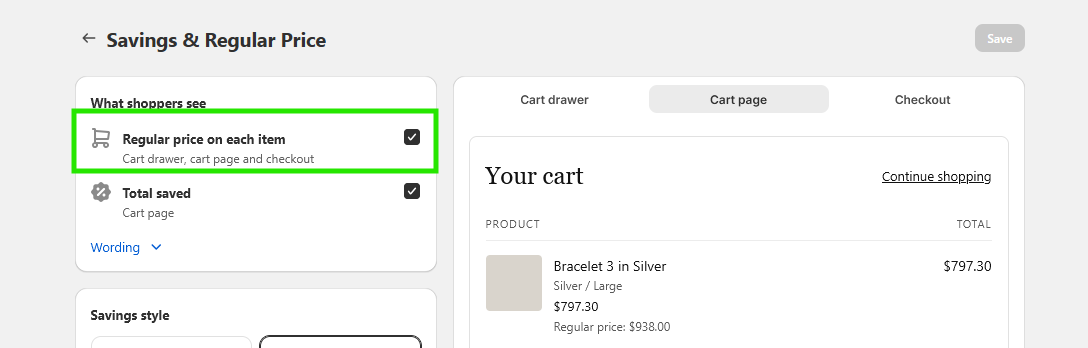
- Expand Wording to change the label shown as regular price.
- Click Save.
Part 2: Adding Total Discount Display
1. Add Discount Block
- Go to Disco dashboard (click Disco icon in Shopify admin)
-
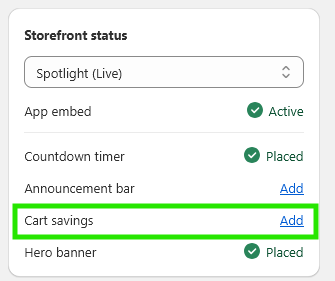
In the Storefront status card, find Cart savings and click Add.
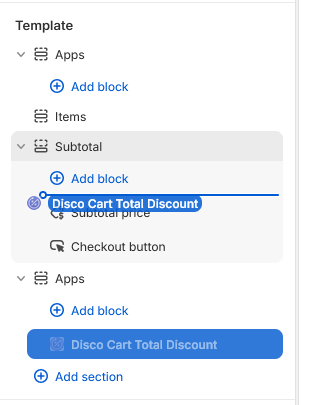
- In the Theme editor the just opened, find the newly added discount block Disco Cart Total Discount.
-
Drag it into the Subtotal section above Subtotal price.
-
Click Save in the top-right corner


Troubleshooting Tips
- If you don't see the Disco options, ensure your theme is compatible with Online Store 2.0
- If changes aren't visible, try clearing your browser cache
- For additional support, contact Disco's customer service
Note: Remember to test your cart functionality after making these changes to ensure everything works as expected.