
How do I turn on the Disco app embed in my theme?
You turn on the app embed from the Storefront status card on Disco's Dashboard so it can load Disco's countdown timer, announcement bar and sale badges on your store.
How to turn on the app embed
-
In Disco, open the Dashboard and find the Storefront status card.
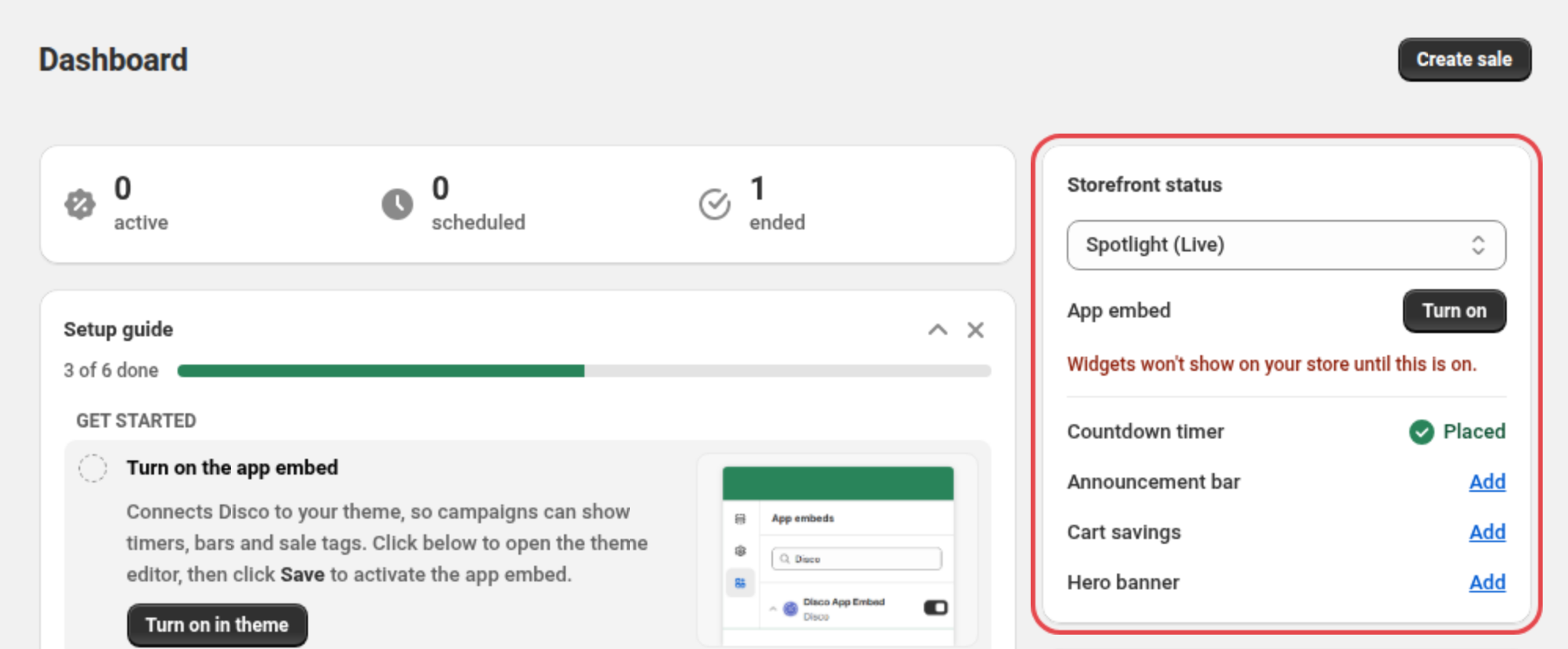
The card checks your live theme, marked (Live). To turn the embed on in another theme, pick that theme in the card's list first.
-
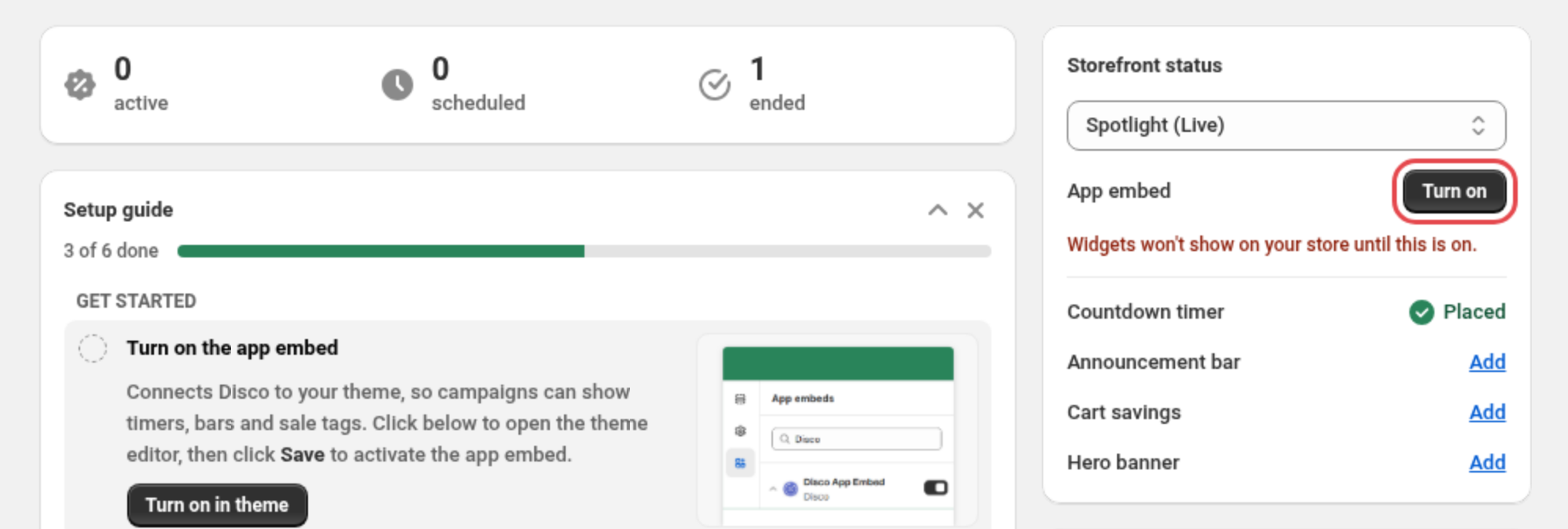
Click Turn on next to App embed.
-
In the theme editor that opens, click Save.
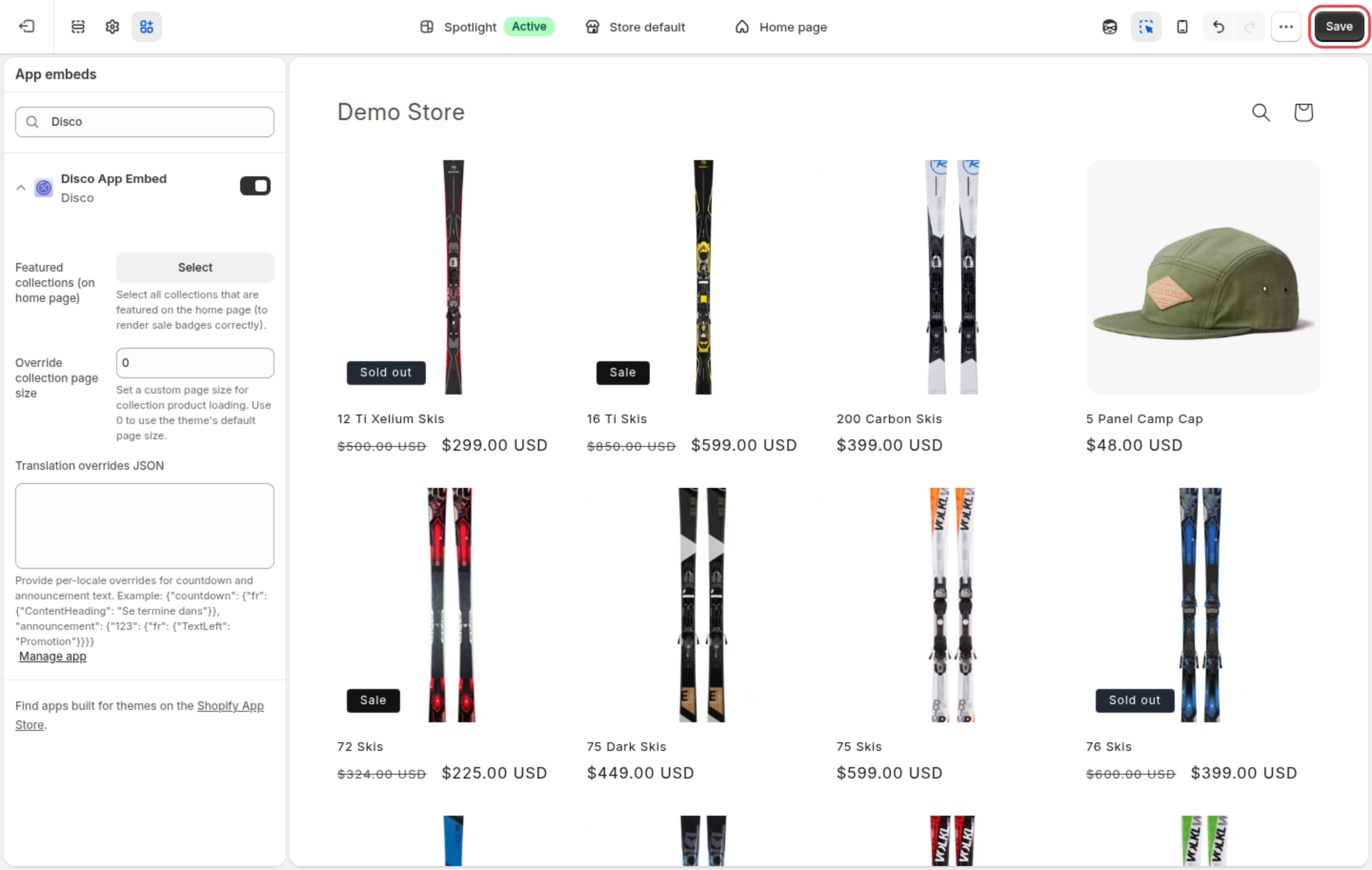
Disco opens the editor with Disco App Embed switched on under App embeds. Until you save, nothing changes on your store.
-
Back in Disco, check that App embed shows Active.
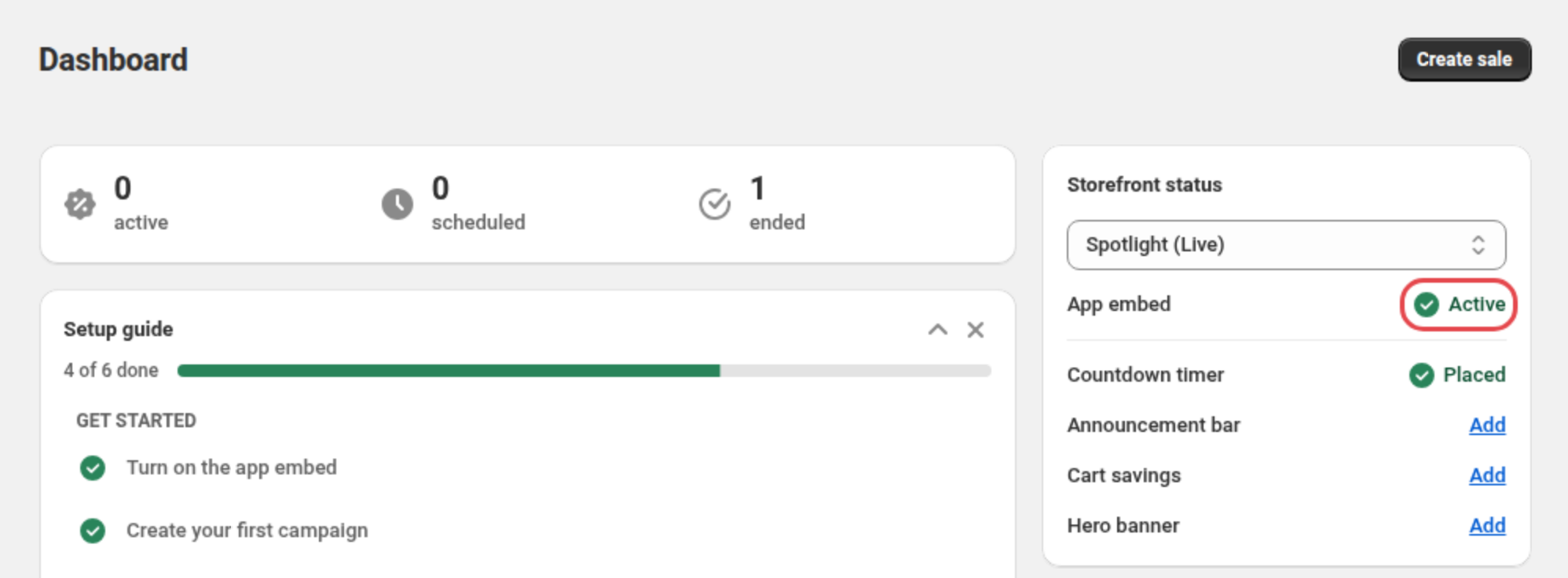
If the Setup guide card is still there, its Turn on the app embed step is marked done too.
Good to know
- The app embed alone shows nothing. A countdown timer, announcement bar, sale badge or hero banner shows when a sale has it turned on. The timer and badges show only while the sale is active.
- The Setup guide card on the Dashboard has the same button. Its Turn on the app embed step has a Turn on in theme button that opens the theme editor the same way as step 2.
- Widgets show on any theme where the embed is on, so a new or test theme needs it turned on too. Pick that theme in step 1 and follow steps 2 to 4, or go to Online Store in the Shopify admin and click Edit theme on that theme. In the sidebar, open App embeds, turn on Disco App Embed and click Save.
- Disco warns you when it's off. If the embed is off in your live theme, saving a sale with a timer, announcement bar or sale badges opens the App is not enabled in your live theme dialog. Its Install app embed button opens the theme editor as in step 2, while Continue anyway saves the sale without the embed, for testing on another theme.
- You can change where the timer or bar appears. You can move the countdown timer or move the announcement bar in your theme. If Storefront status says "This theme doesn't support app blocks" or the Setup guide says "The selected theme does not support app blocks", use custom placement for themes without app blocks instead.
- Widget availability depends on your plan. The countdown timer is on every plan, while the announcement bar and sale badges need the Lite plan or higher. The hero banner needs the Professional plan or higher.
Questions, or something doesn't look right? Send us an email at support@productessentials.app and we'll take a look.