
Can I import discounts from a CSV file?
Yes! You can set discounts in bulk in a Different discounts campaign by importing a CSV file. Import your own list from a spreadsheet, naming products by SKU, or export the campaign's products, fill in discounts and import the file again. Different discounts needs the Professional plan or higher.
I already have a list of products and discounts
-
In Disco, go to Campaigns and open the campaign:
- For a new one, click Create campaign. In Choose campaign type, choose Different discounts.
- For an existing one, click Edit on a Different discounts campaign. If it's running, Disco asks What do you need to edit? Choose Edit entire sale.
Running campaign? It's briefly off after you save, while Disco reactivates it.
-
In a spreadsheet, make a file with a row per product. It needs a product column (Product SKU, Product ID or both), plus Discount type and Discount. To start from a sample file, download it from the import dialog, which you open in step 4.
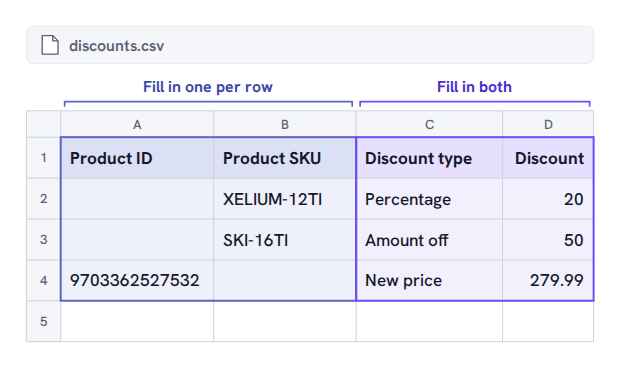
Name each product by Product SKU or Product ID; fill in one per row. You can leave out the column you don't use. If a row has both, the ID is used.
Product SKU is the SKU of any one of the product's variants; the row discounts the whole product. If two products in your store share a SKU, the row is skipped: use Product ID for those.
Discount type takes Percentage, Amount off or New price. Amount off is in your store's currency. Discount takes the number, like 20 for 20% off.
-
Save the file as CSV.
-
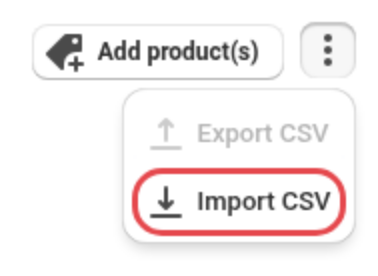
Beside Add product(s), click the three-dot More actions button and choose Import CSV.
-
In the Import discounts from CSV dialog, click Choose file or drop the file in the dashed box.
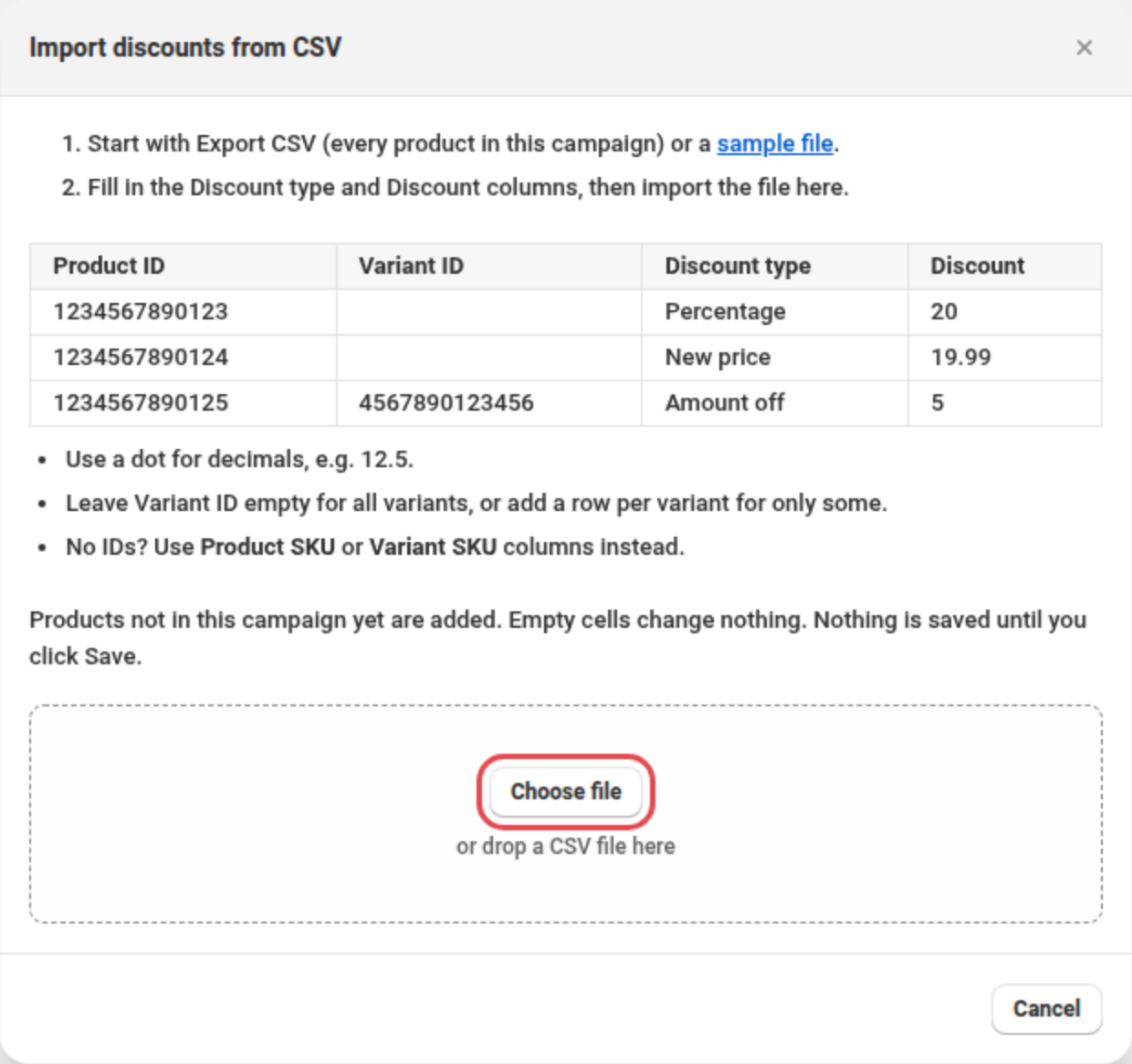
The dialog's sample uses Product ID; a SKU file works the same.
-
Products not yet in the campaign are added if your store has them. Check how many products were added and updated, and any skipped lines with their reasons, then click Done.
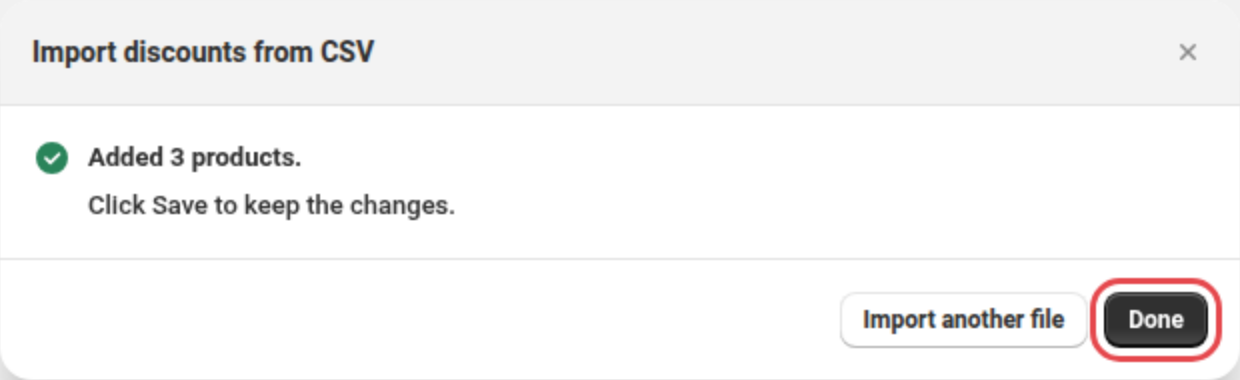
The Products card now shows each product's discount from the file.
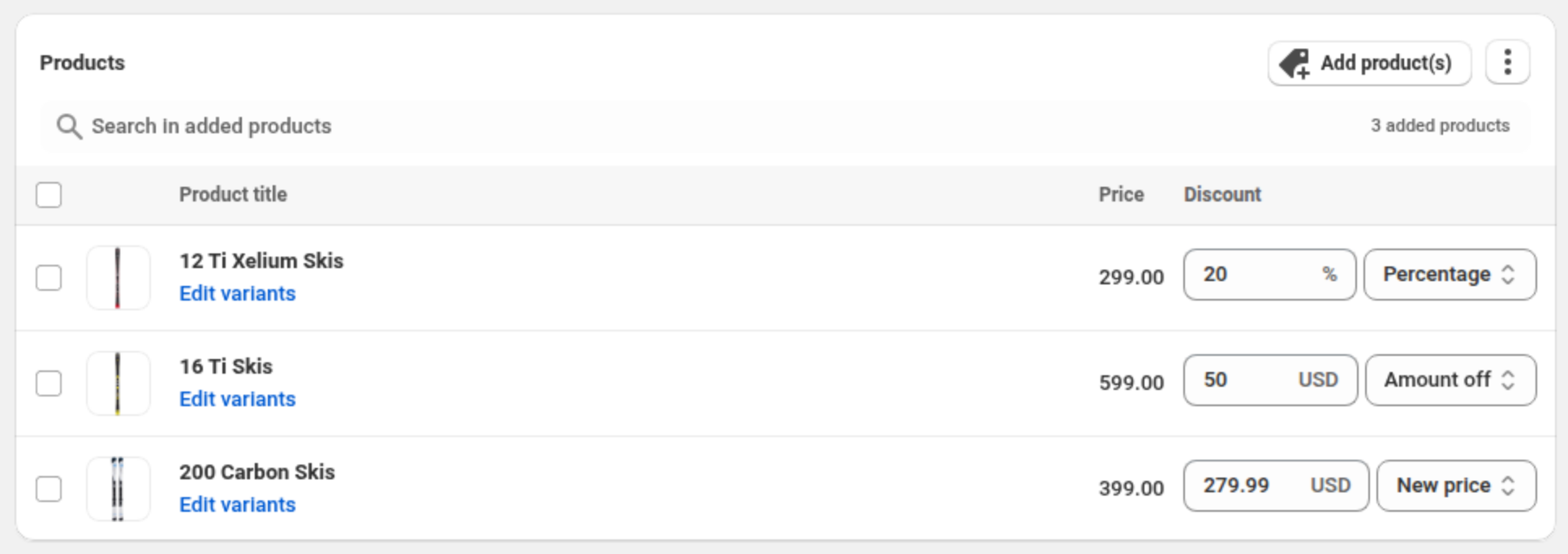
-
Save the campaign. If it's new, first fill in Campaign name. Active dates are optional: left empty, the campaign starts when you save. Then click Next twice and click Save on the wizard's last page.
Nothing is saved until you click Save.
I want to edit a campaign's discounts in a spreadsheet
-
In Disco, go to Campaigns and open the campaign:
- For a new one, click Create campaign. In Choose campaign type, choose Different discounts.
- For an existing one, click Edit on a Different discounts campaign. If it's running, Disco asks What do you need to edit? Choose Edit entire sale.
Running campaign? It's briefly off after you save, while Disco reactivates it.
-
If the campaign is new, click Add product(s) and add the products you want to discount.
-
Beside Add product(s), click the three-dot More actions button and choose Export CSV.
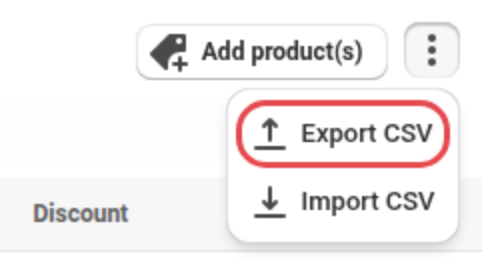
The file has a row per product. A product limited to some variants has a row per selected variant instead.
-
Open the file in a spreadsheet and fill in the Discount type and Discount columns.
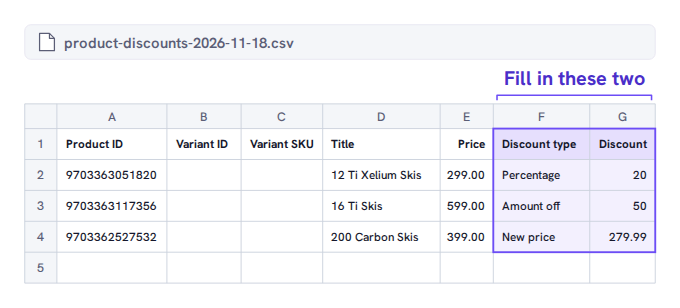
Discount type takes Percentage, Amount off (in your store's currency) or New price. Discount takes the number, like 20 for 20% off.
-
Save the file as CSV.
-
Beside Add product(s), click More actions again and choose Import CSV.
-
In the Import discounts from CSV dialog, click Choose file or drop the file in the dashed box.
-
Check how many products were updated and any skipped lines, then click Done.
-
Save the campaign. If it's new, fill in Campaign name first. Active dates are optional: left empty, the campaign starts when you save. Then click Next twice and click Save on the wizard's last page.
Good to know
-
Discounting only some variants. Add a row per variant, with a Variant SKU or Variant ID column. The rows choose which variants are in the campaign; they must all have the same discount, or the whole product is skipped.
-
Use a dot for decimals, like 12.5. A line with a decimal comma, like 12,5, is skipped. Semicolon-separated files, as Excel saves them in some regions, work too, but their decimals still need a dot.
-
Skipped lines change nothing. Fix them in the file and click Import another file.
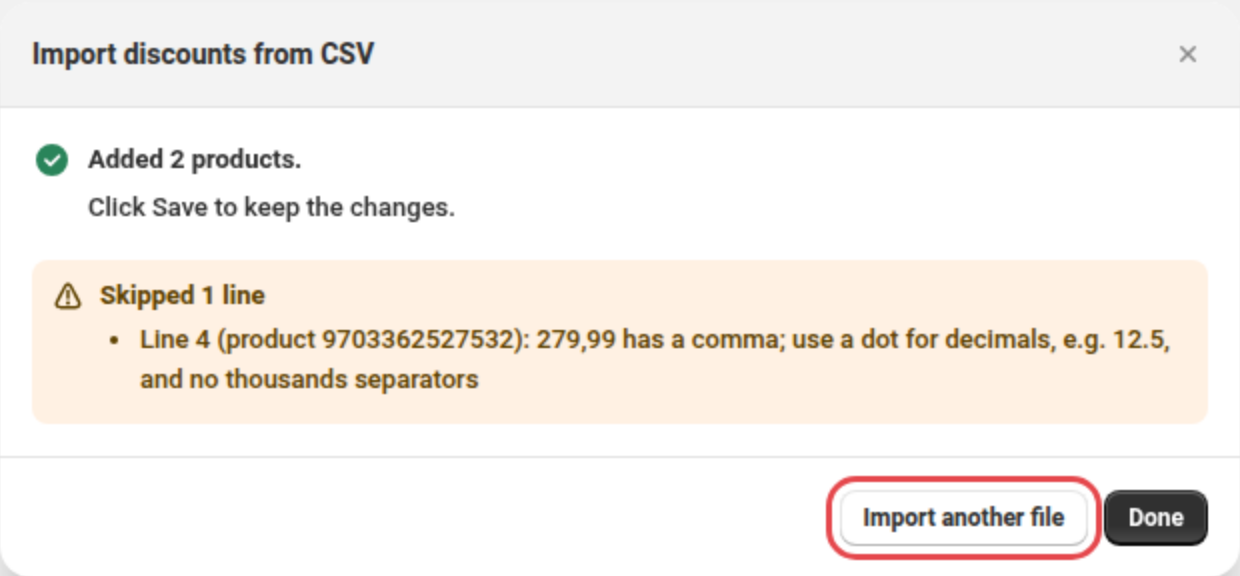
-
If no line could be used, the campaign stays as it was. The dialog says "Nothing was changed." and offers Choose another file.
Questions, or something doesn't look right? Send us an email at support@productessentials.app and we'll take a look.