
How do I create a storewide sale on all products?
To discount every product in your store, create a Same discount sale in Disco and choose All products, as long as your plan covers that many products.
How to create a storewide sale
-
In Disco, click Create sale on the Dashboard.

-
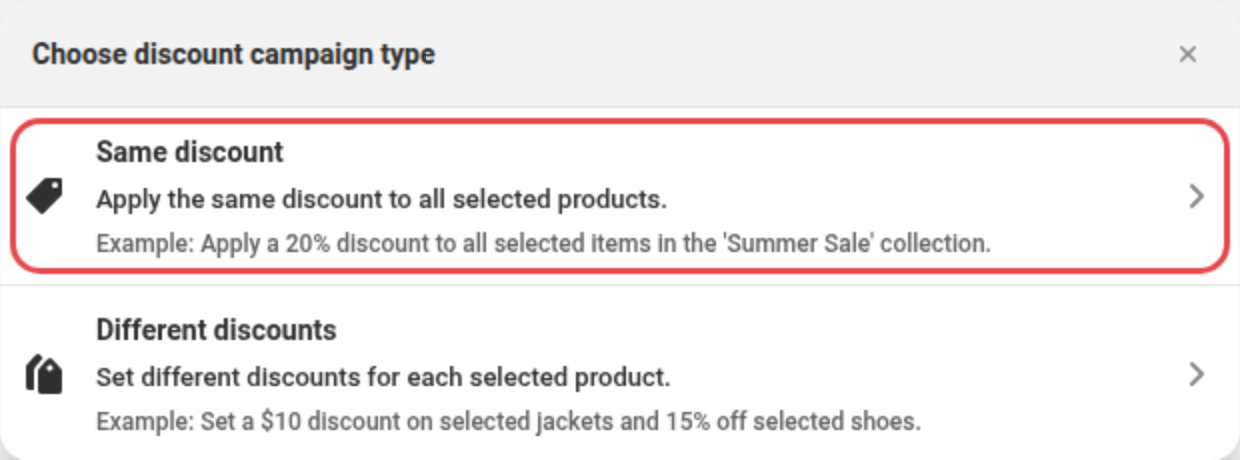
In the dialog that opens, choose Same discount as the sale type, since only this type lets you choose all your products in one click.
-
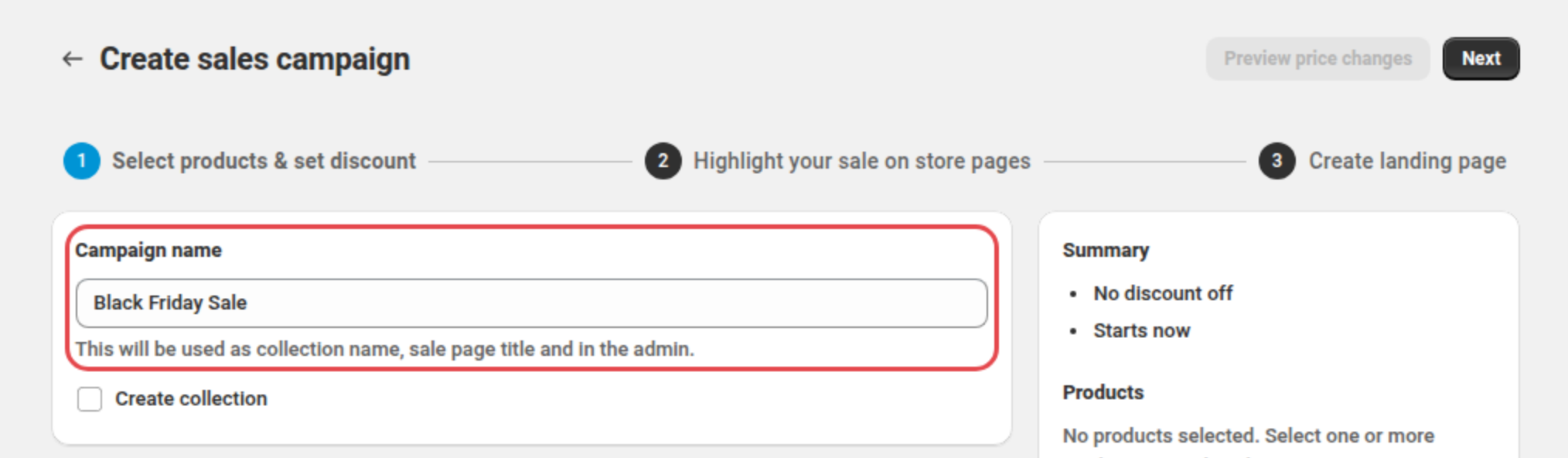
In the Campaign name card, type a name for the sale, such as "Black Friday Sale".
-
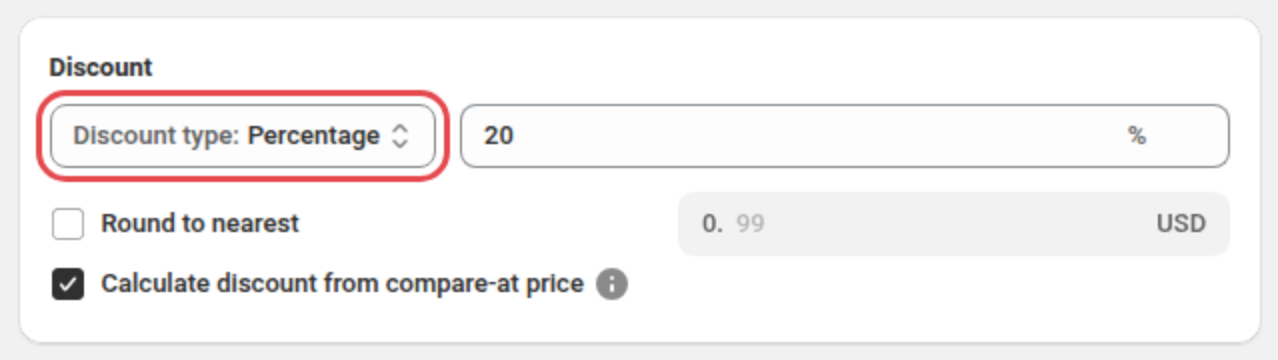
In the Discount card, choose Percentage as the discount type.
-
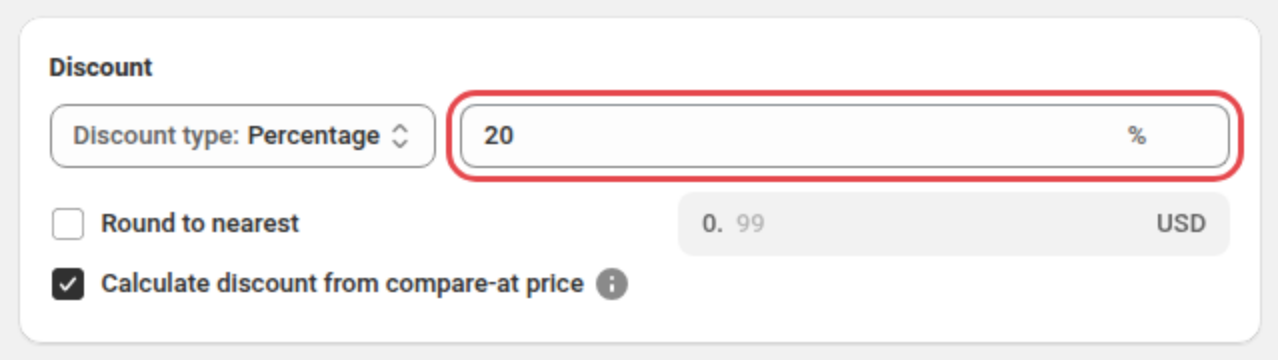
Enter the discount, such as 20.
-
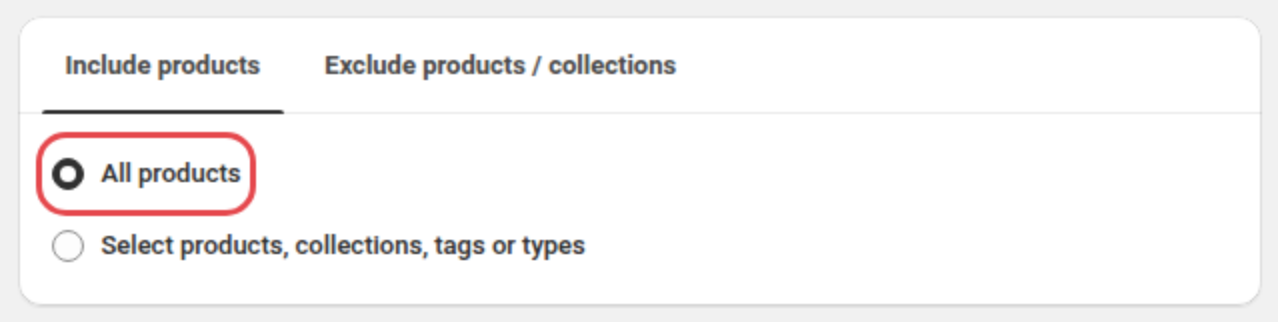
On the Include products tab, choose All products.
-
In the Active dates card, set when the sale starts.
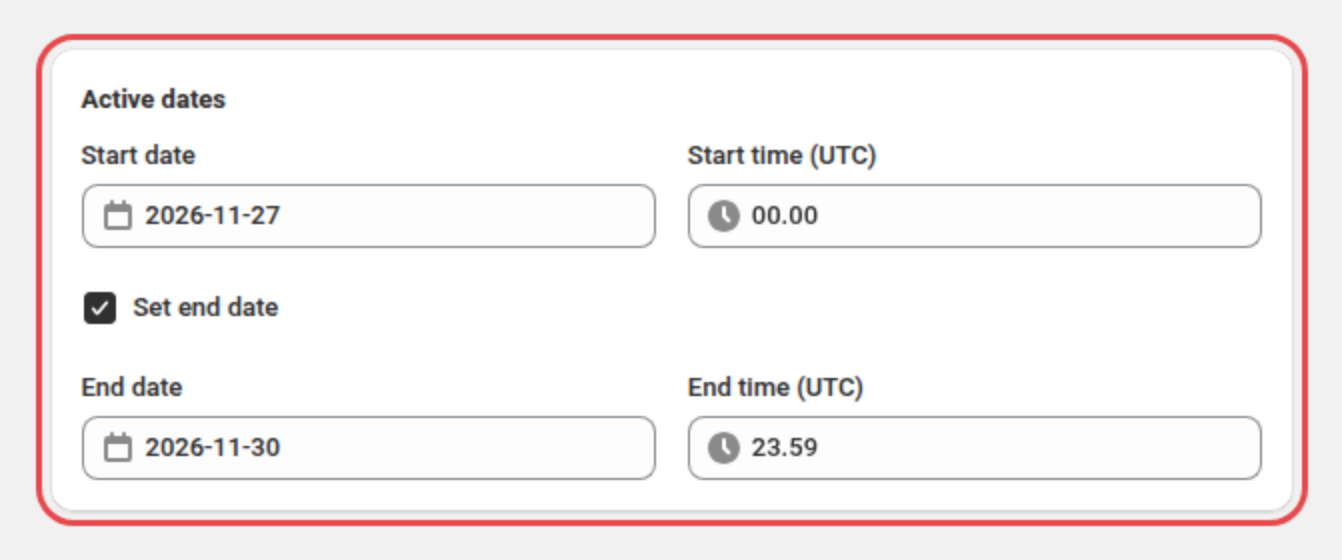
Set the Start date and Start time so Disco starts the sale on its own then, or leave them empty to start the sale as soon as you save it. To have Disco end the sale on its own too, turn on Set end date. Then set the End date and End time. Without an end date, the sale runs until you stop it.
-
Click Next until you reach the last page.

The second page adds widgets, such as a countdown timer, and the third adds a sale page. A new sale has its widgets and its sale page switched off, so you can click past those two pages. To add them, see Creating a Sale with Widgets and Landing Page.
-
Click Save.

If you set a start date, Disco saves the sale and says "Campaign created successfully".
-
If you left the start empty, click Proceed in the Activate Sale Now? dialog.
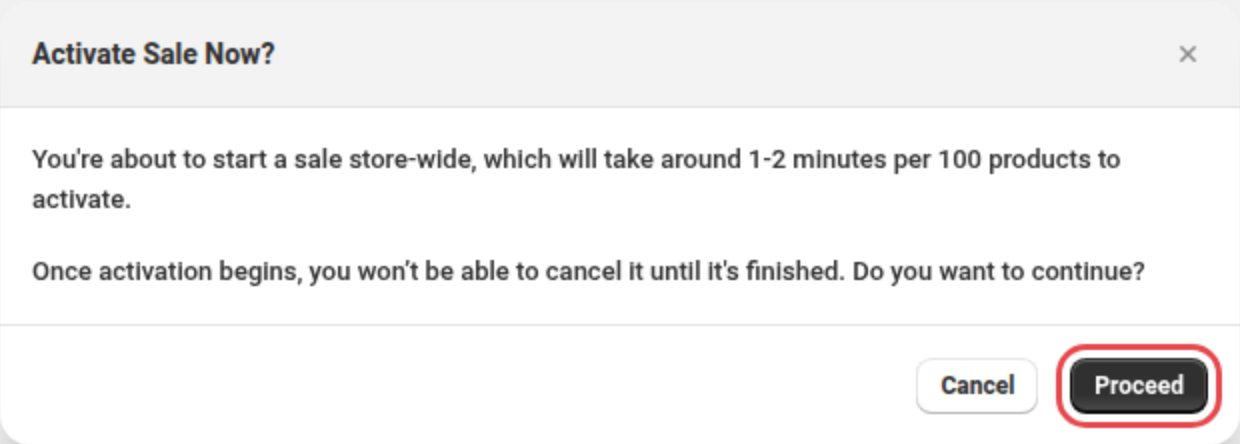
The dialog warns that activation takes about 1-2 minutes per 100 products and that once activation begins, you can't cancel it.
Good to know
- Your plan sets how many products Disco can discount at once. The limit counts the products in all your running sales, this one included. A sale over the limit is saved with the status Needs upgrade and starts once you upgrade to a plan that covers it, right away if its start time has passed.
- You can leave some products out on the Exclude products / collections tab. On the Lite plan and up, click Exclude product(s) or Exclude collection(s) to pick what to skip. Exclude draft and archived products is on in a new sale, so draft and archived products aren't discounted.
- Products you add to the store after the sale starts aren't discounted on their own. Disco applies the discount when the sale starts. To discount products you added since, click Synchronize on the sale's row on the Campaigns page.
- Prices go back on their own when the sale ends. By default, Disco puts back the prices your products had before the sale, so price changes you make while the sale runs are overwritten.
- Products that already have a compare-at price can be discounted from it. When Calculate discount from compare-at price is on in the Discount card, Disco takes the discount off the compare-at price. When it's off, Disco takes it off the product's current price.
- A product in two sales gets the bigger saving. A product is in two sales when another sale runs at the same time on products your storewide sale includes. If both sales have widgets on a product, the product shows the widgets of the sale that started last.
Questions, or something doesn't look right? Send us an email at support@productessentials.app and we'll take a look.