
How-to: Create sale on specific collection(s)
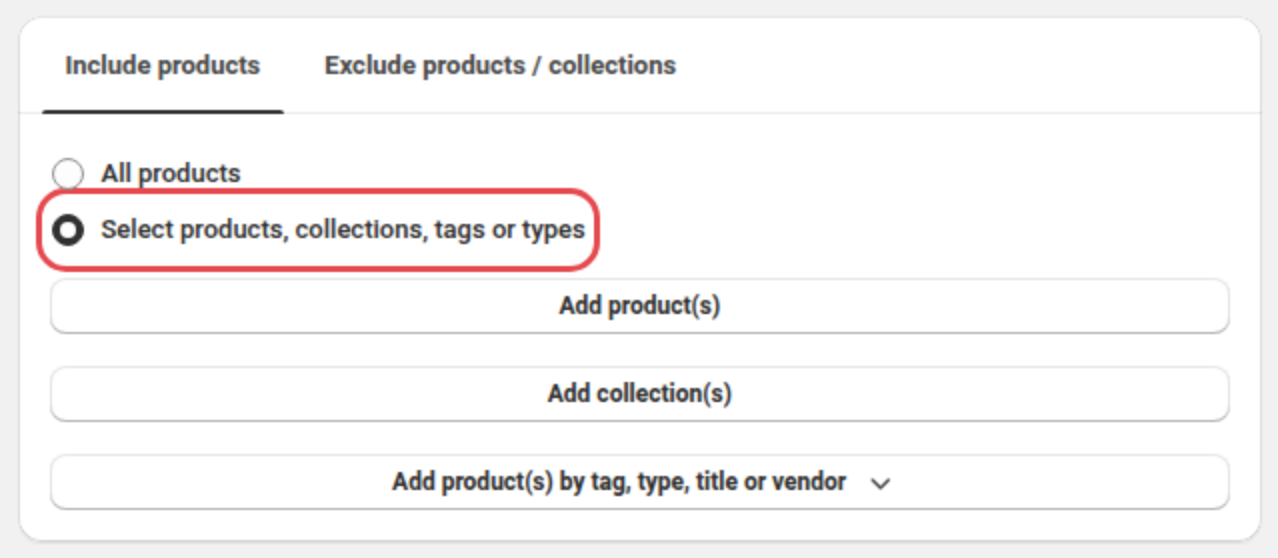
Start a new sale, and on its Include products tab choose Select products, collections, tags or types instead of All products, then add your collections.
How to create a sale on specific collections
-
In Disco, click Create sale on the Dashboard.

-
Choose Same discount.
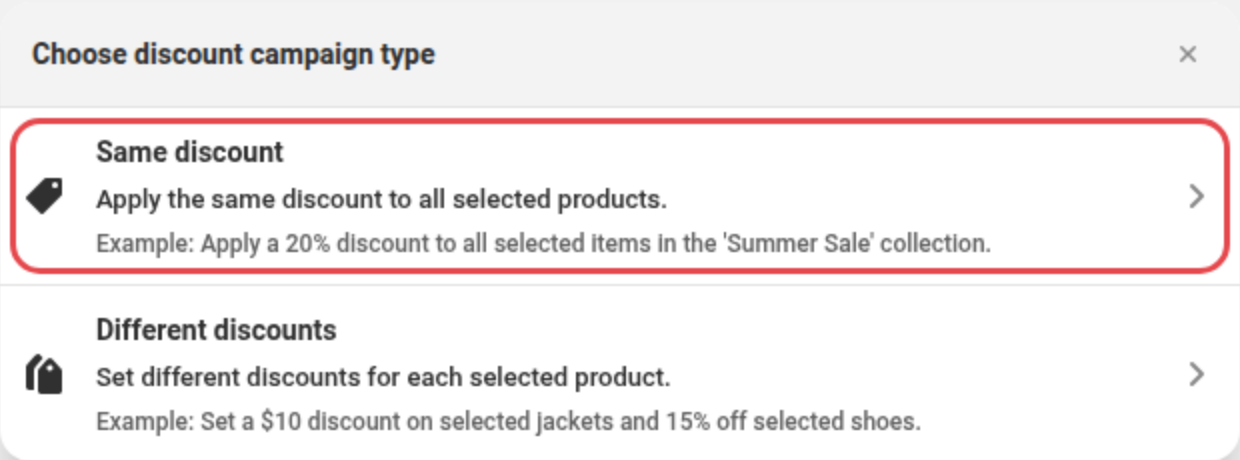
Different discounts lets you set a different discount for each product instead; it comes with the Professional plan and up.
-
In the Campaign name card, type a name for the sale, such as "Winter Gear Sale".
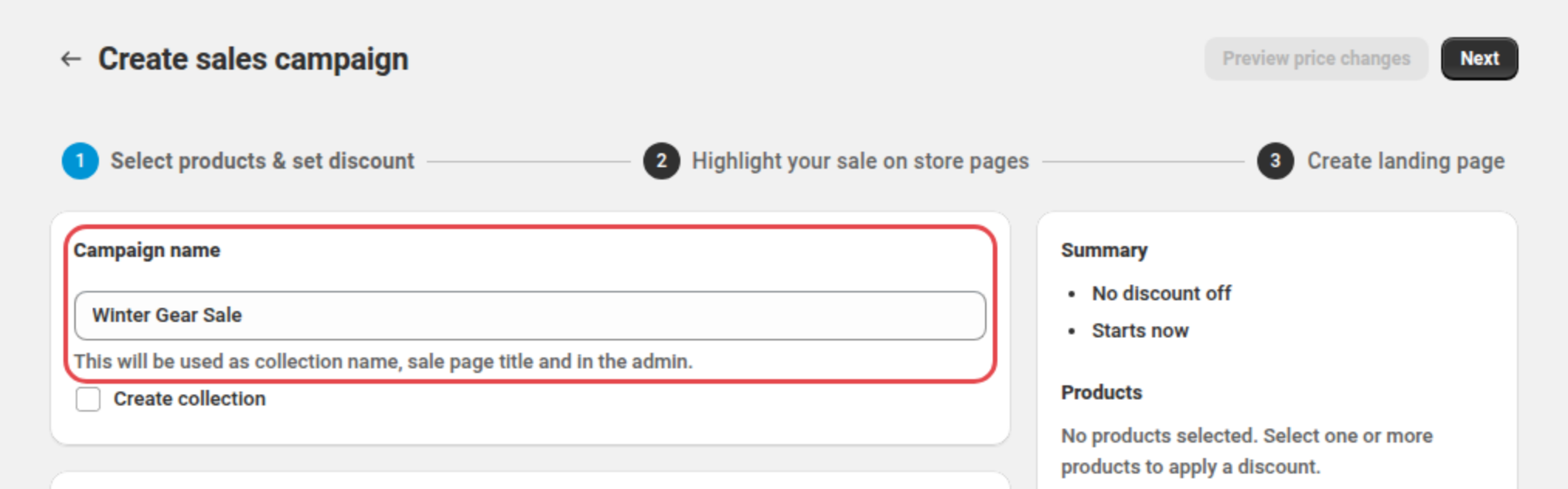
-
Choose Percentage as the discount type.
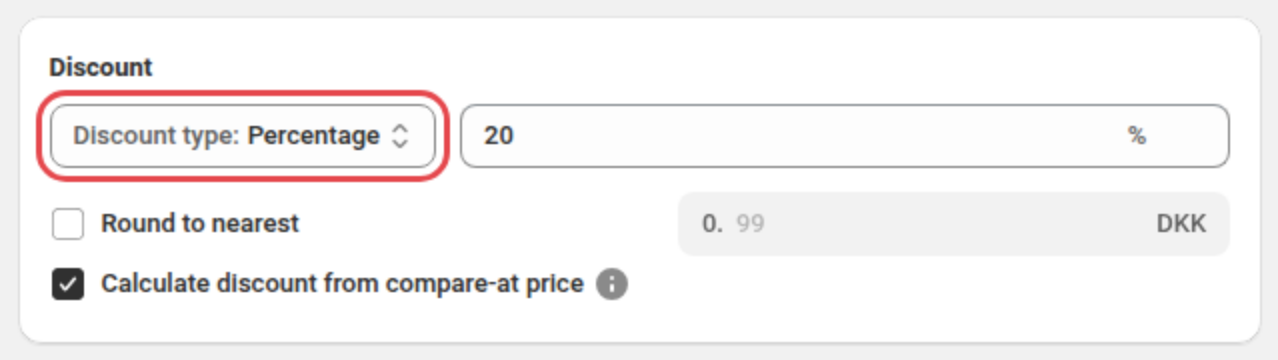
-
Enter the discount, such as 20.
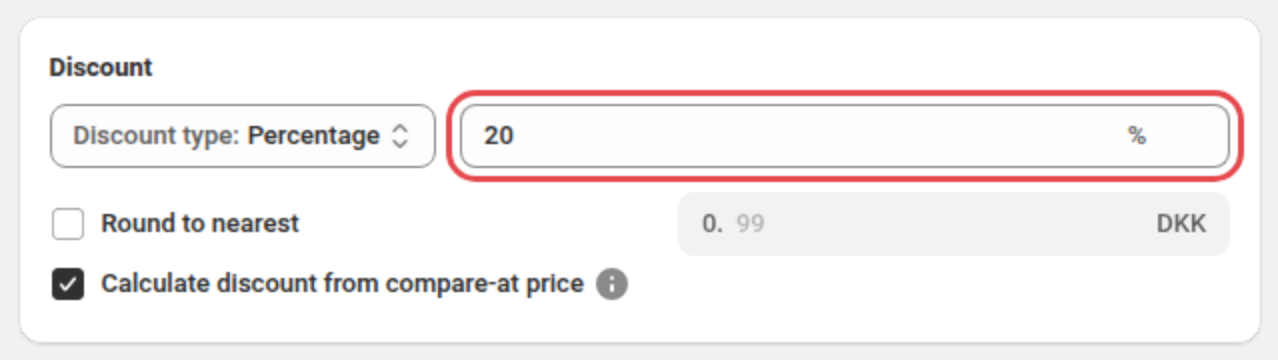
-
On the Include products tab, choose Select products, collections, tags or types.
-
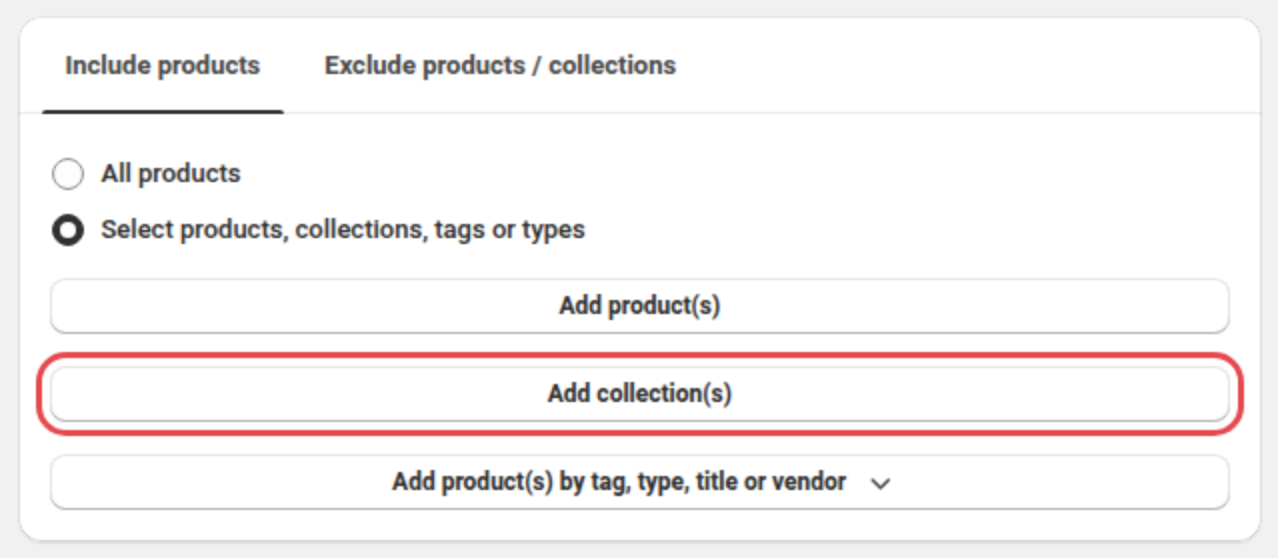
Click Add collection(s).
-
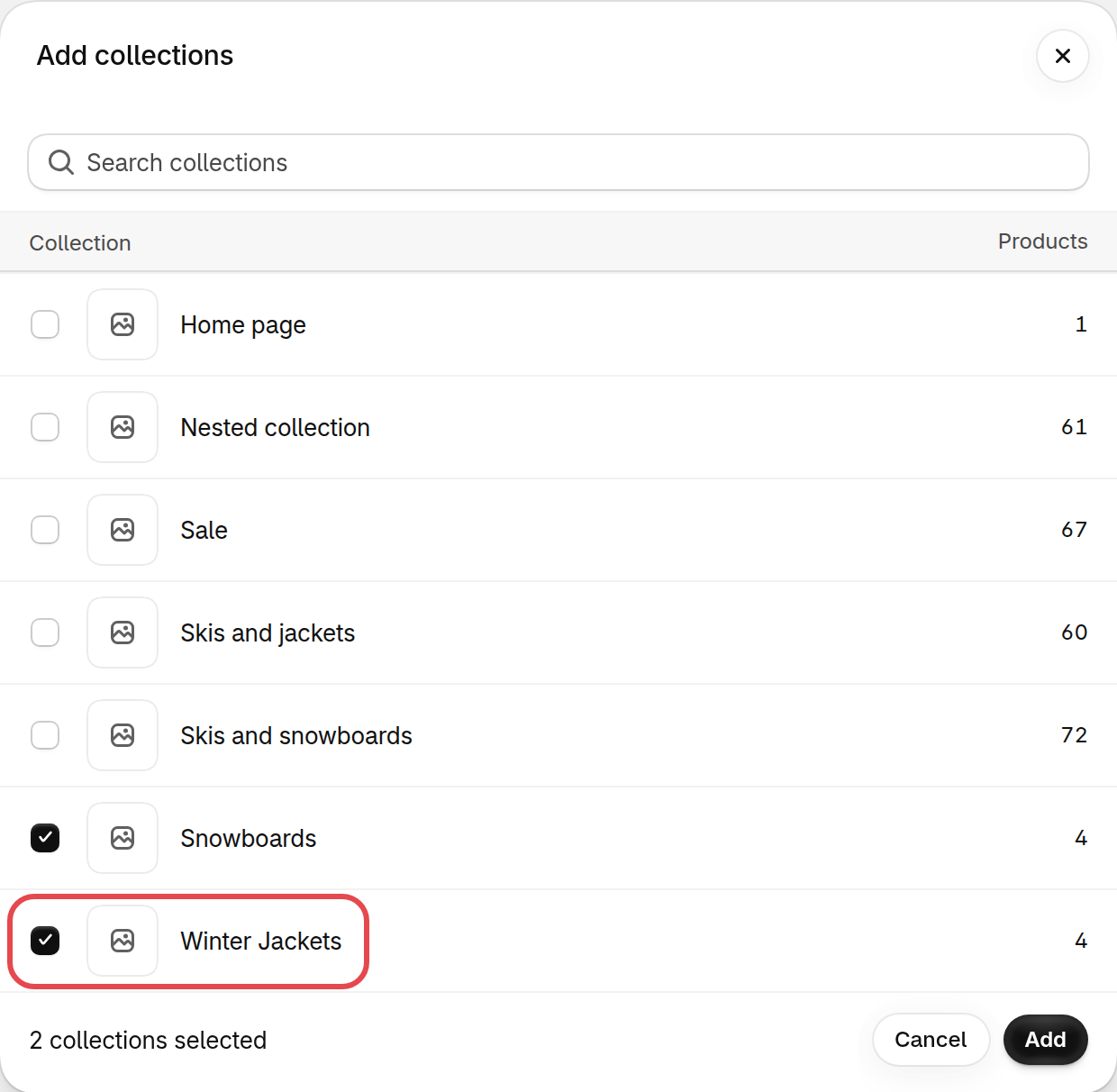
Select one or more collections.
-
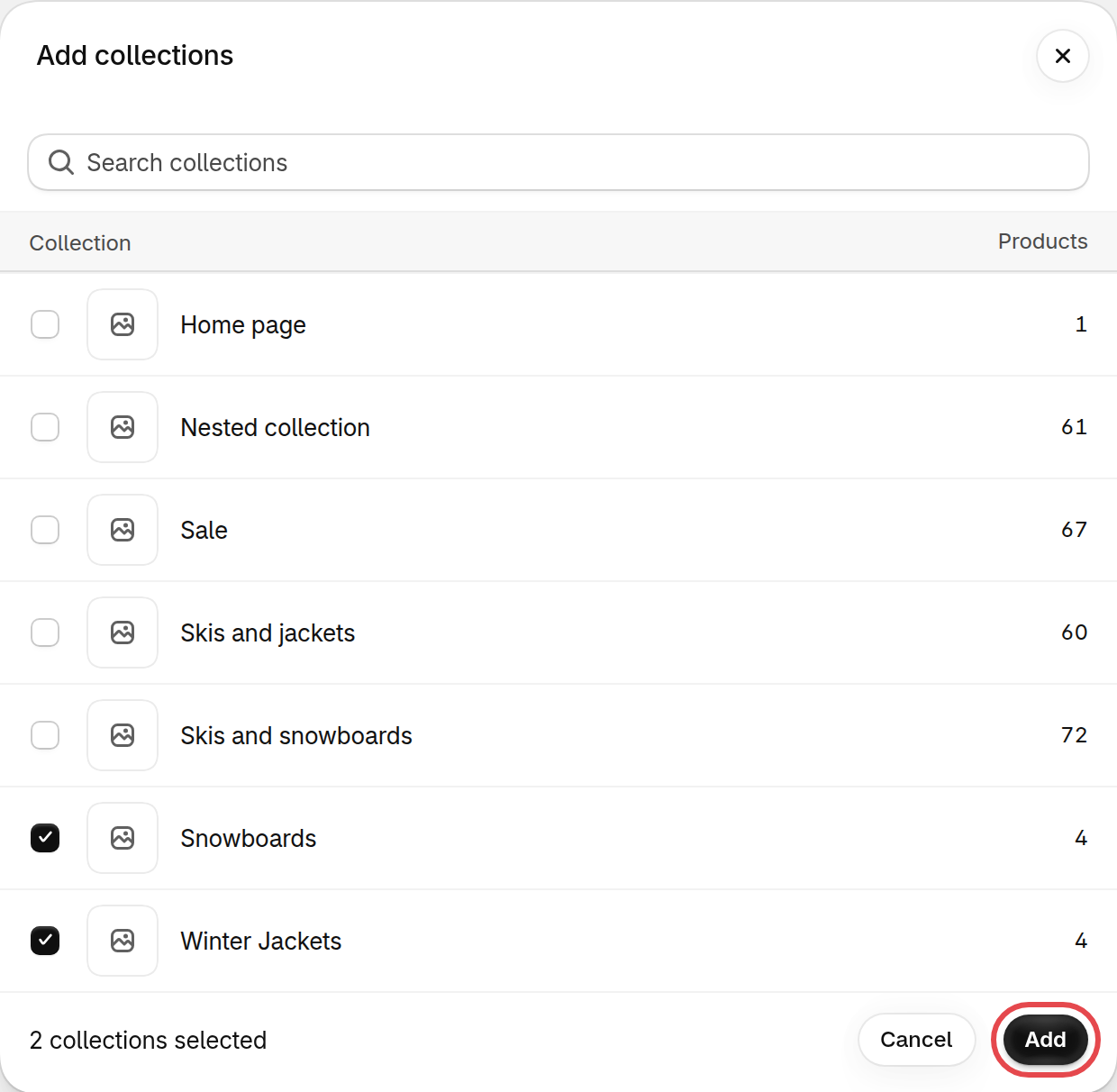
Click Add.
-
Set the start and end date and time in Active dates.
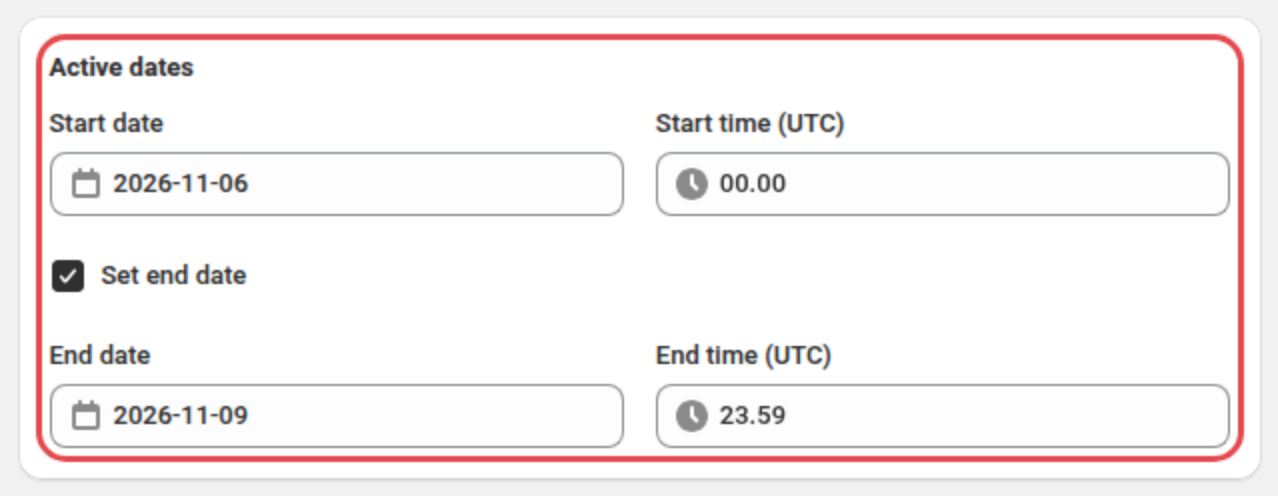
To set the end date, turn on Set end date first. Disco starts and ends the sale on its own at those times.
-
Click Next until you reach the last page.

-
Click Save.

Good to know
- Products you add to a collection after the sale starts aren't discounted on their own. Disco applies the discount when the sale starts. To discount products you added since, or take it off products you removed, click Synchronize on the sale.
- You can leave a few products out. On the Exclude products / collections tab, exclude single products or whole collections. To leave out draft and archived products too, turn on Exclude draft and archived products. Exclusions come with the Lite plan and up.
- You can take an amount off or set a fixed price instead. Choose Amount off or New price as the discount type. All three discount types are on every plan.
- For a different discount per collection, create one sale for each collection. A Same discount sale gives all its products the same discount.
- A product in two sales gets the bigger saving. This happens when collections in two sales overlap. If both sales have widgets on the product, it shows the widgets of the sale that started last.
Questions, or something doesn't look right? Send us an email at support@productessentials.app and we'll take a look.